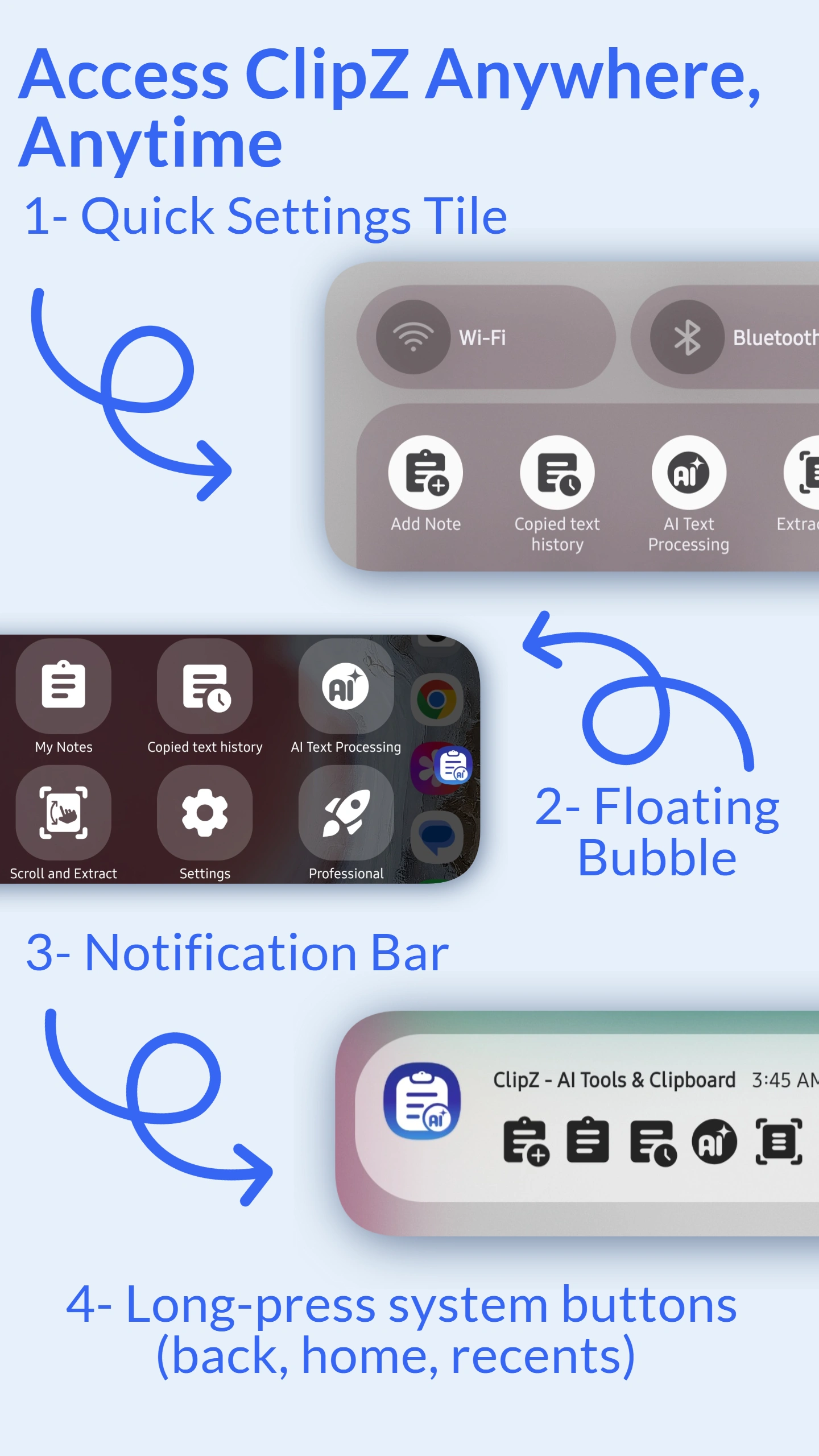
Method 2: Notification Panel
Swipe down from top of screen to access the notification panel. ClipZ shows your recent clips and quick actions in an expandable notification. Tap any clip to copy it, or tap "Open ClipZ" for full access. Always available when ClipZ is running.
Method 3: Quick Settings Tile
Add ClipZ to your quick settings (control center). Swipe down twice from top of screen, tap ClipZ tile for instant access. Customize tile actions: show last clip, open history, or quick paste. Perfect for users who prefer native Android controls.
Enable button shortcuts to open ClipZ by long-pressing navigation buttons (home, back, or recent apps). Works on devices with physical or virtual buttons. Great for quick access without cluttering screen with floating bubble.